ux-portfolio-laile823
iPad’s Special Keyboard
As a student, I am mostly using my iPad to take notes during class. Tablets nowadays have become so popular amongst students due to the productivity boost it comes with. An important aspect for a note taking tool, like the tablet, is its ability to organize and modify at a fast pace. Combined with the Apple Pencil, writing notes on the iPad is a breeze. However, if you would like to type your notes, then the utilization of the Apple Pencil is not needed. The incorporation of a phsyical keyboard (or the digitial keyboard) is required—thus creating further steps to reach the same goal.
The iPhone Operating System (IOS) has a keyboard that demonstrates a good application of “Match[ing] between system and the real world”, from a usability guideline that aids in the creation of applications to be more learnable. The interface originates from the common “QWERTY” style keyboards that the majority of people have on their desk. Below is an image of the standard QWERTY keyboard in comparison to the iPhone’s keyboard.
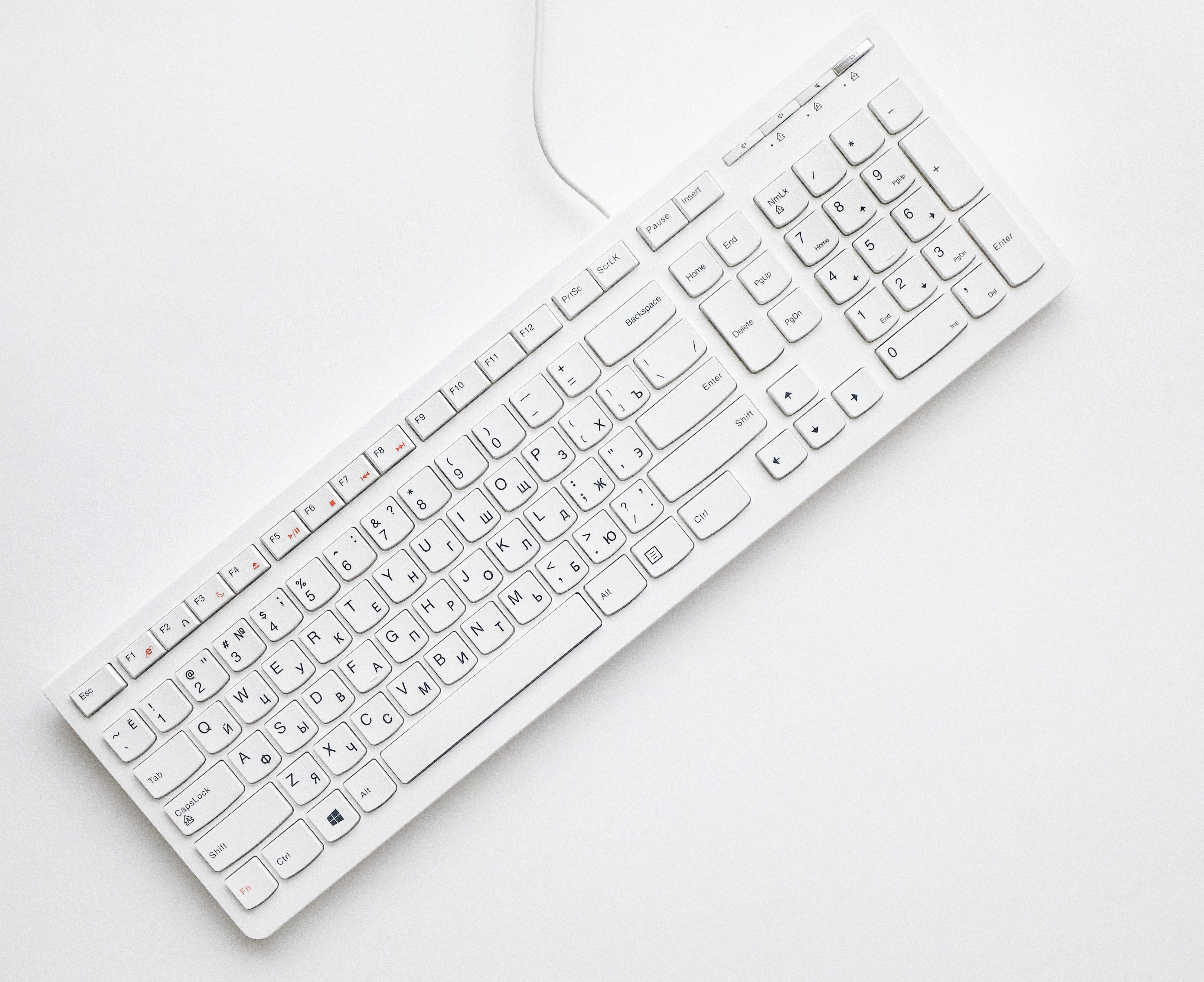

In smart phones, it is common to have the keyboard split into two. One keyboard for the letters, the second for numbers and symbols. This is because fitting the standard 104 keys on a phone screen would be too small for the eyes of the general user. Additionally, cramming those many keys on a touch screen holds the potential to ruin the accuracy of the user’s typing as it would be too easy to accidently press two keys at once. Here, one can see the iPad’s keyboard is split into two—just like the iPhone. In contrast, the keys shown on the iPad are different.
When typing a password, it is often required to include a symbol or special character; especially with today’s password requirements. Personally, I am very familiar with the IOS keyboard and do not need to repeatedly review the keyboard when typing. When I ran into this scenario for the first time on my iPad, I needed the exclamation point to log into my school’s portal. My first instinct was to click on the second keyboard to pull up the symbols & numbers to select the exclamation point. Since the keyboards have such a stark difference in orientation, I would accientally click on the comma key instead. Only after this mistake did I notice that the exclamation point was located directly above the comma. Common convention would tell me to hold onto the “,” key and I can click on the exclamation point from there. To my surprise, I only saw an upside exclamation point which is not what I anticipated. Another common characteristics for keyboards to have is the ability to combine two keys to get a special character. For example, typing “Shift + 1” will give you an exclamation point on a standard QWERTY keyboard. It took me a couple minutes to figure this out. I was totally surprised to see the comma disappear and see it be replaced with the exclamation point.
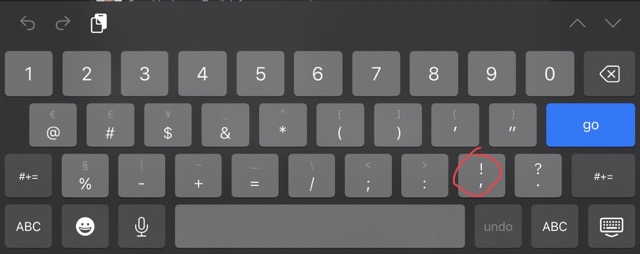
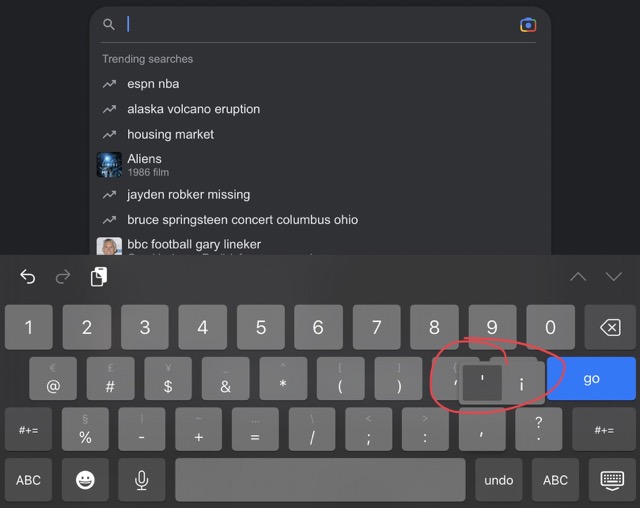
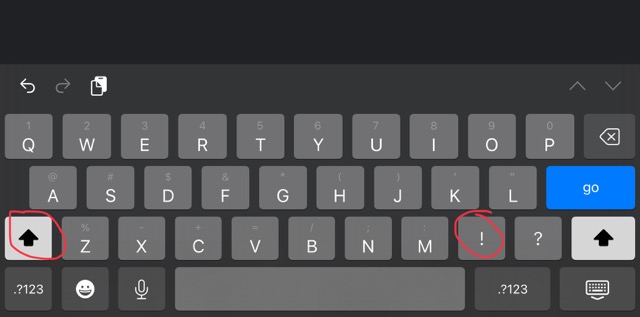
In conclusion, the new user’s experience with the iPad keyboard is not a good one. In my opinion, they should have stayed with the standard IOS keyboard layout. Or, if Apple’s goal was to make the iPad keyboard closer to the standard QWERTY they should have had the exclamation point above the 1 instead of the comma with all the symbols following suit. This would have way better fit the model image of the standard keyboard and resulted with a conceptual model that was very different from the mental one.