mypantry
MyPantry Wireframes
Login in, Account Creation, and Home Page
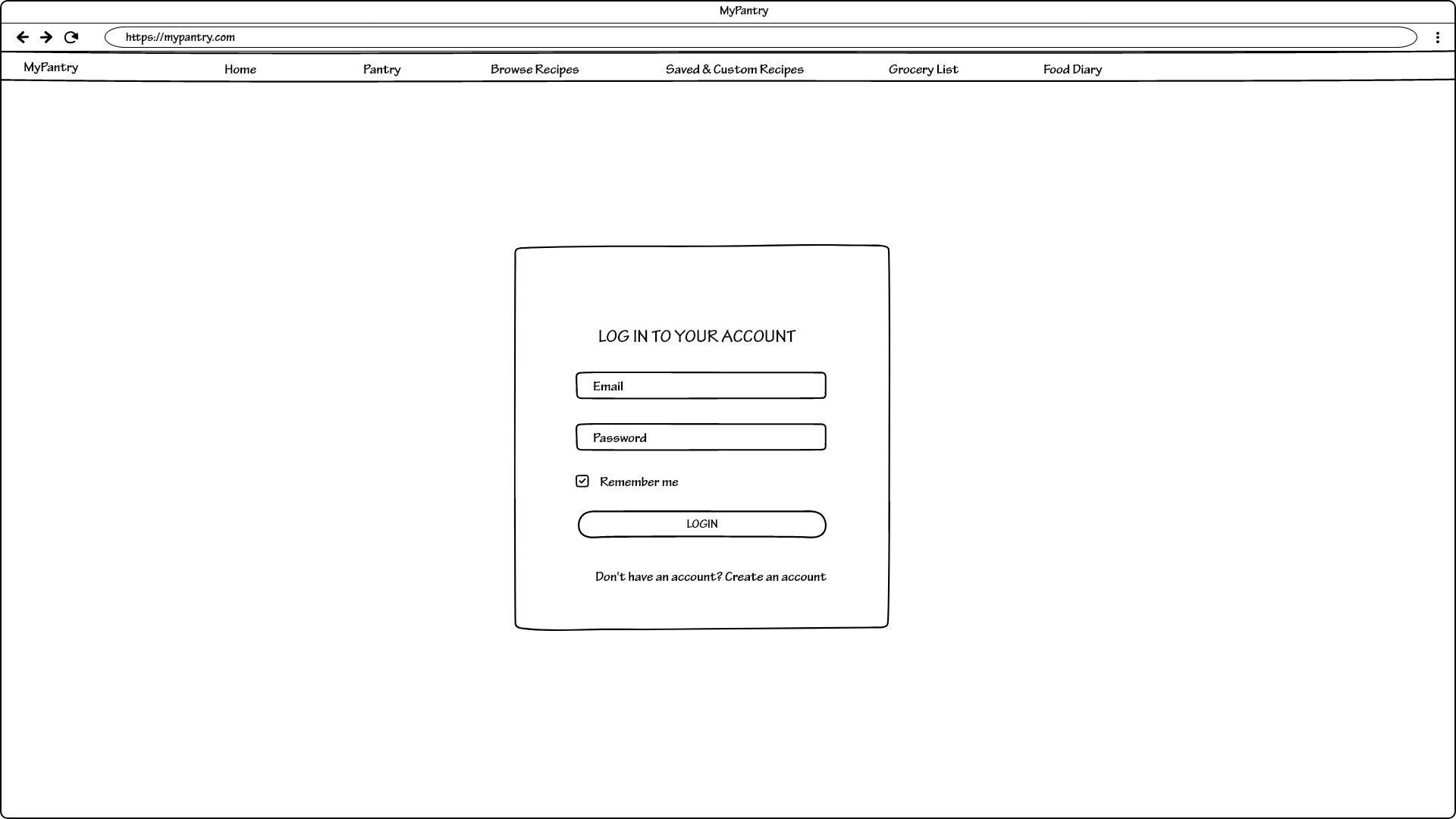
When first arriving at our website, users are presented with a login screen. All links on the navigation bar redirect to this login screen until the user has successfully logged in.
Clicking on “Create an account” will redirect users to the following screen:
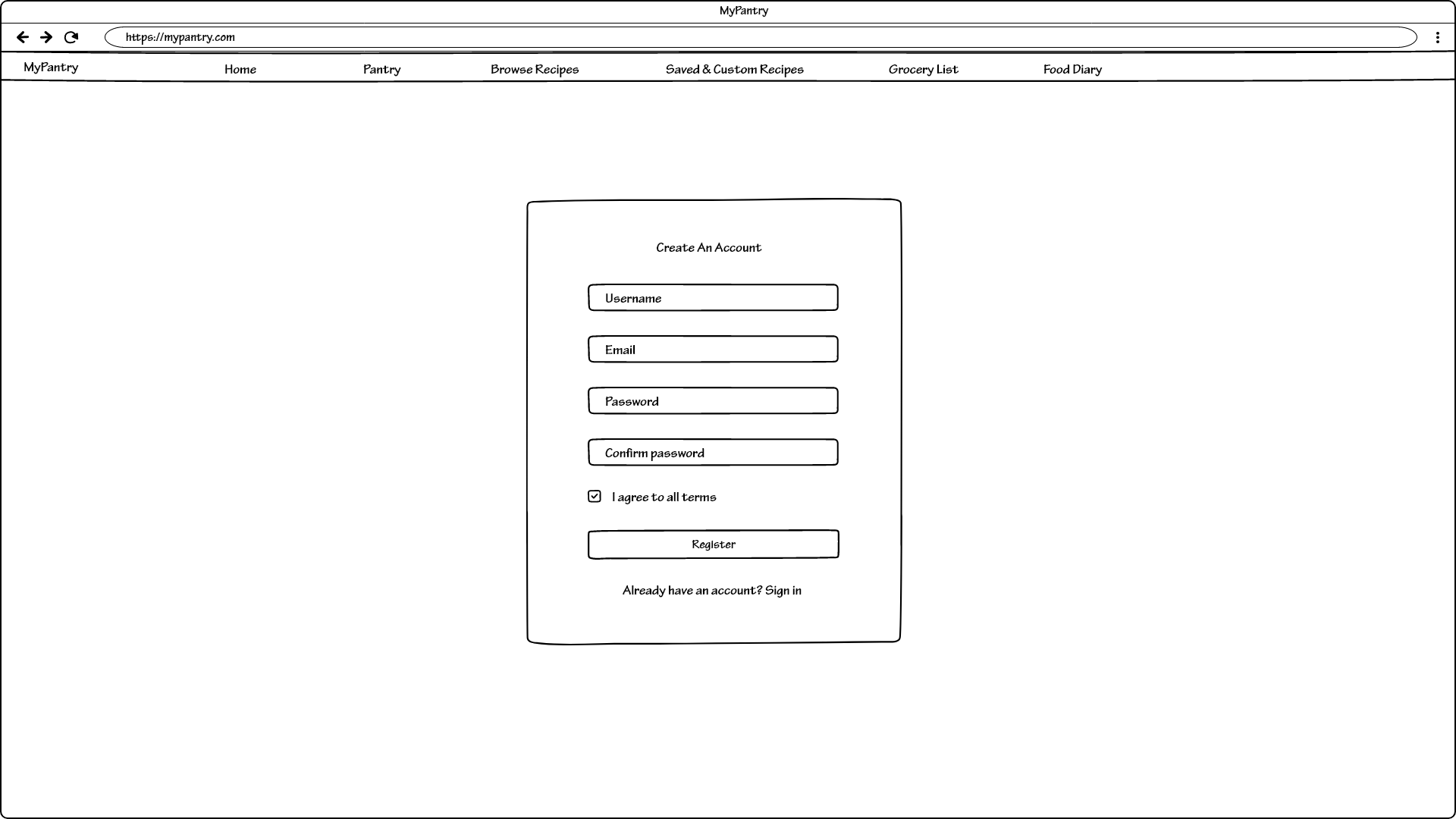
The prompt “Already have an account” is meant for users who accidentally navigated to this screen. Upon signing in or registering an account, users are presented with the home page:
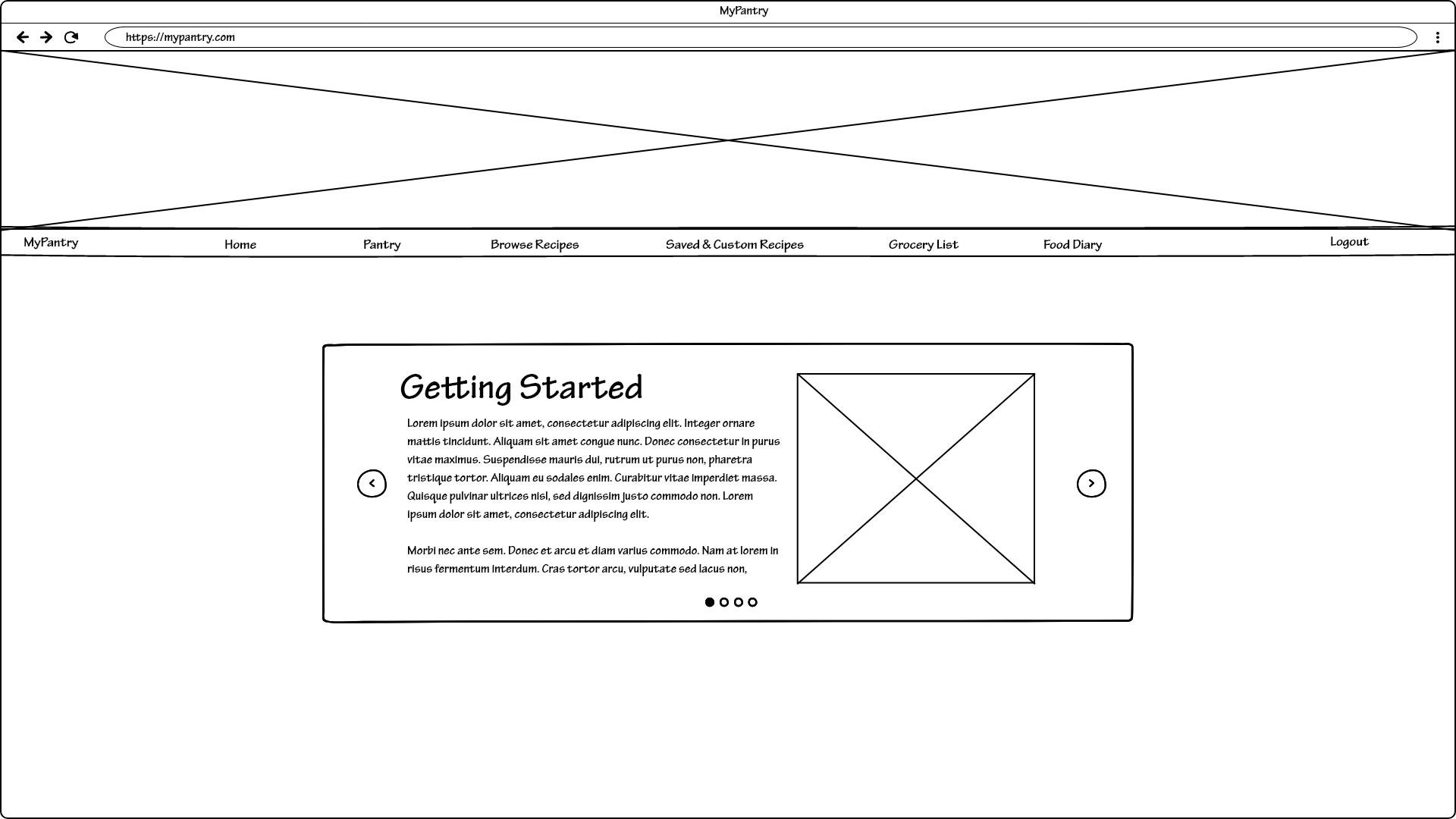
On this screen, users are presented with some help and documentation regarding navigation around the site and tips on using some of its features. Users will return to this screen anytime they select “Home” on the navigation bar.
Pantry
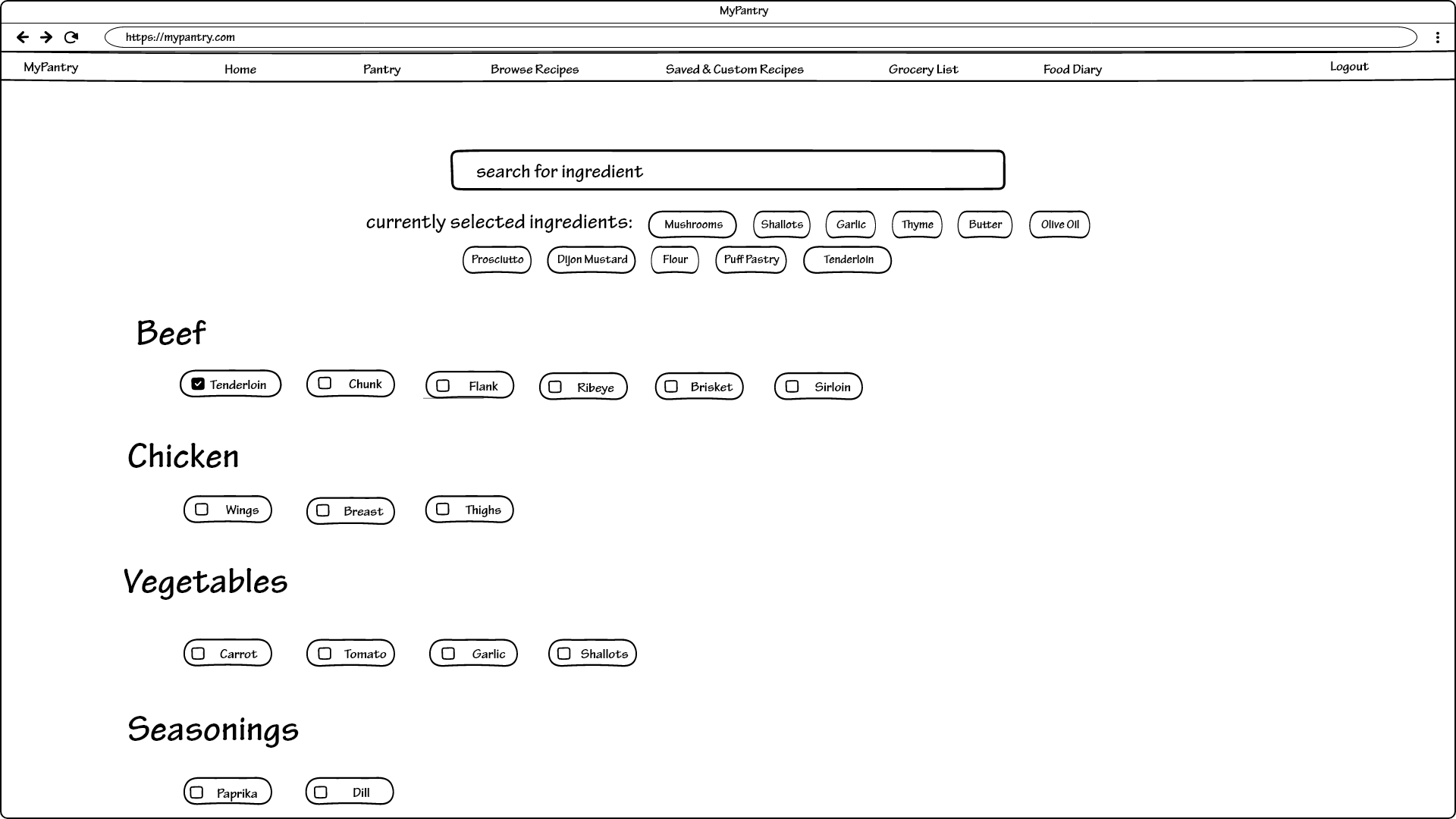
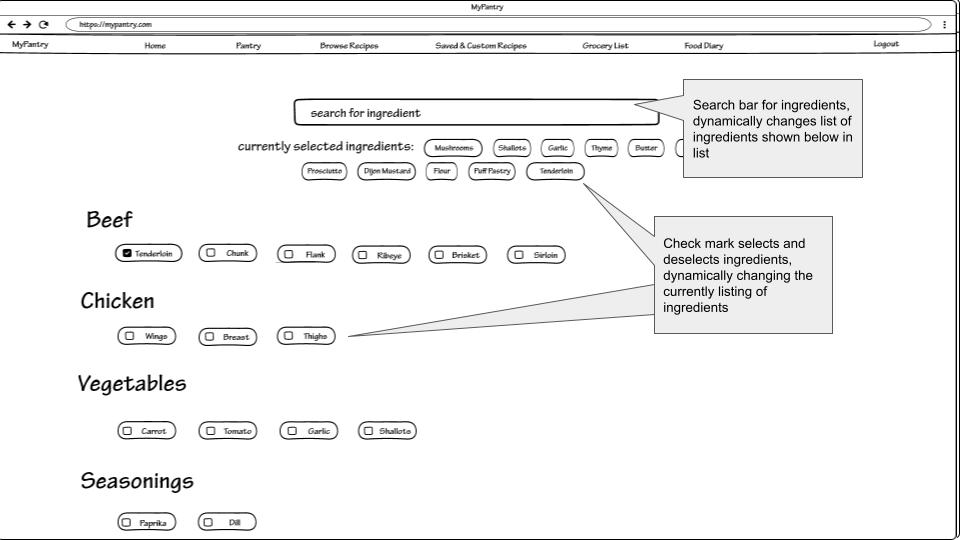
Click on the “Pantry” link on the navigation bar redirects users to the following screen where users can add ingredients currently in their pantry:
Browse Recipes
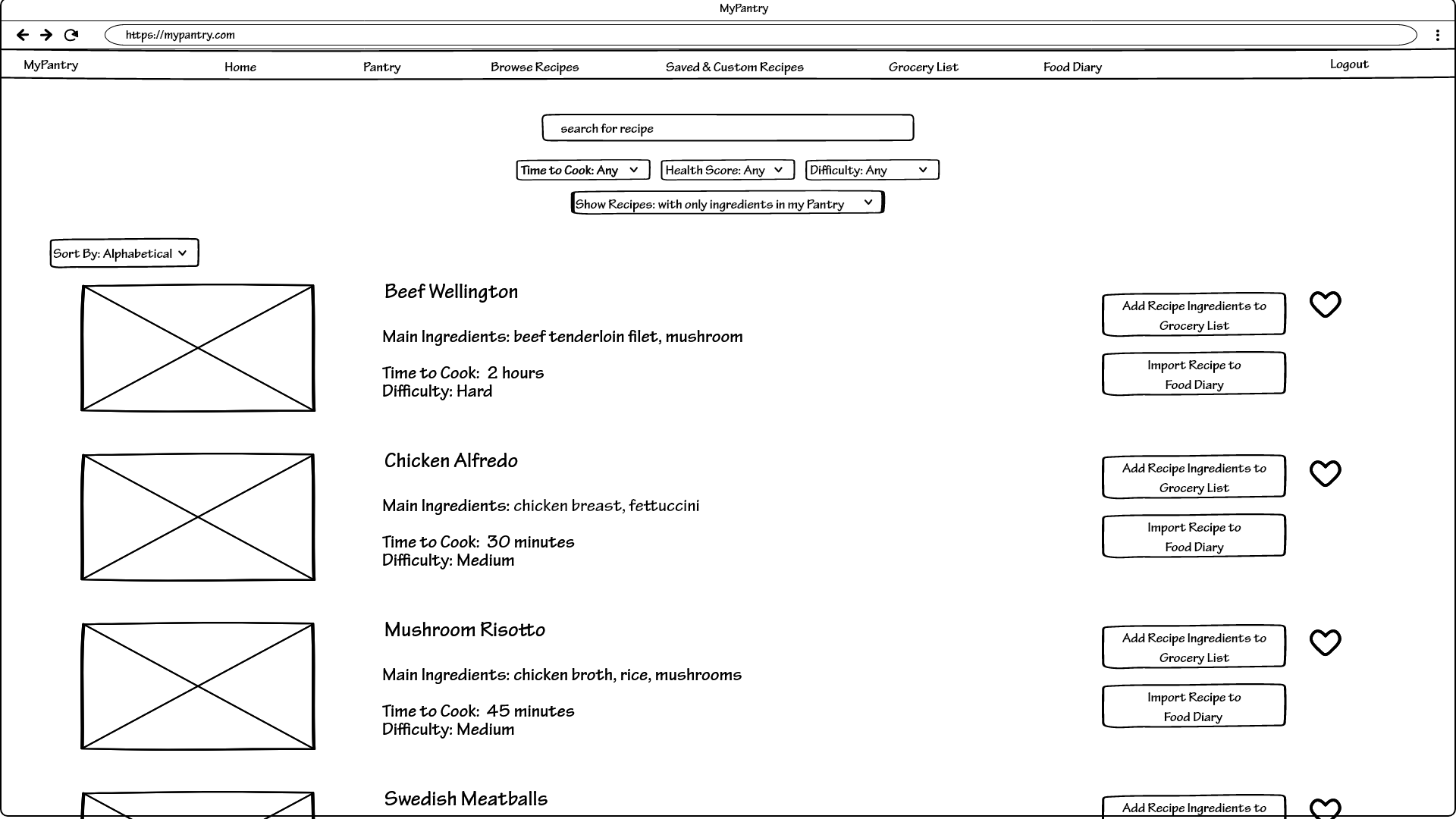
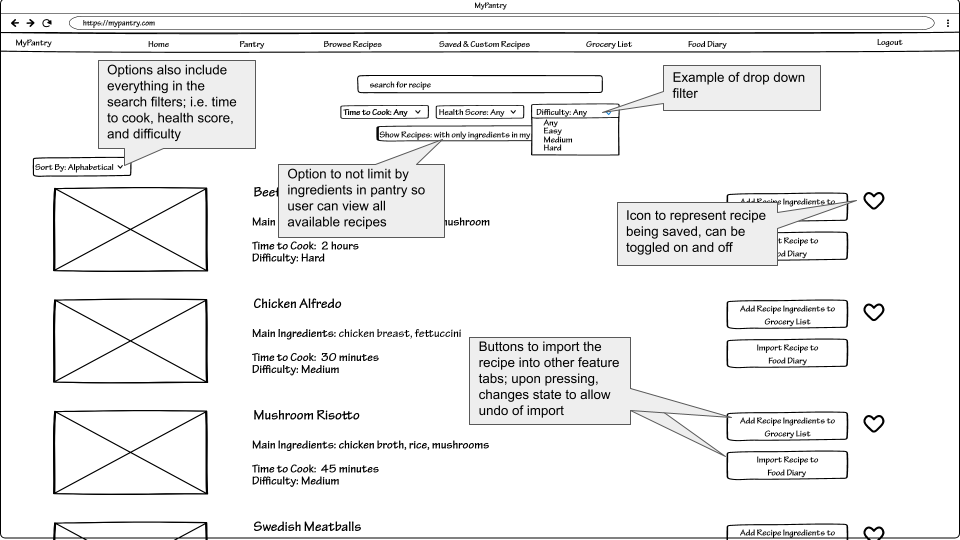
The “Browse Recipes” link takes users to the following screen where they can select recipes based on certain filters (such as filtering only by recipes that are available in their pantry) as well as have import interactions with the other three features of the site.
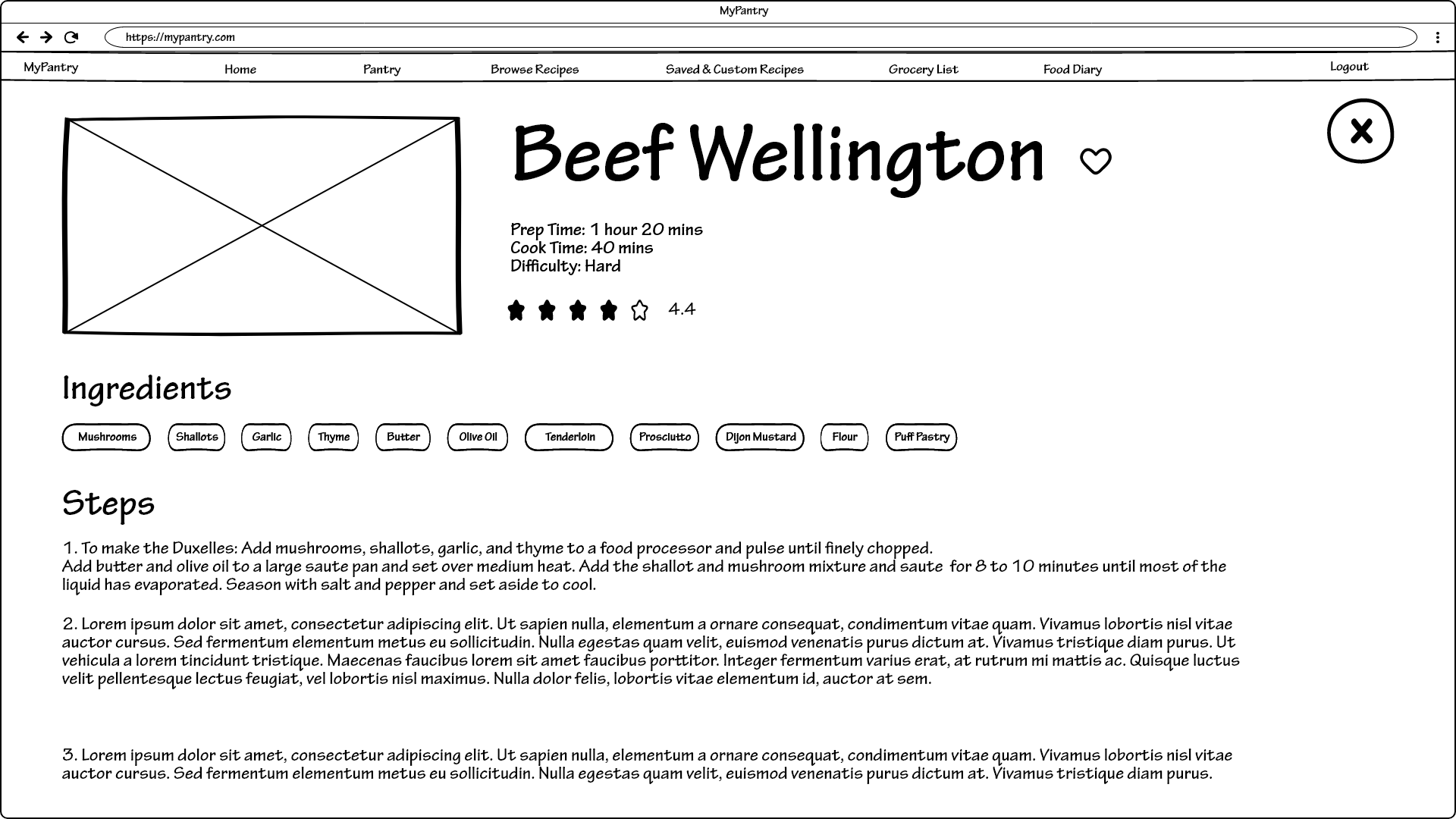
Selecting a particular recipe (e.g. the Beef Wellington panel) presents users with a pop-up showing cooking information:
Saved and Custom Recipes
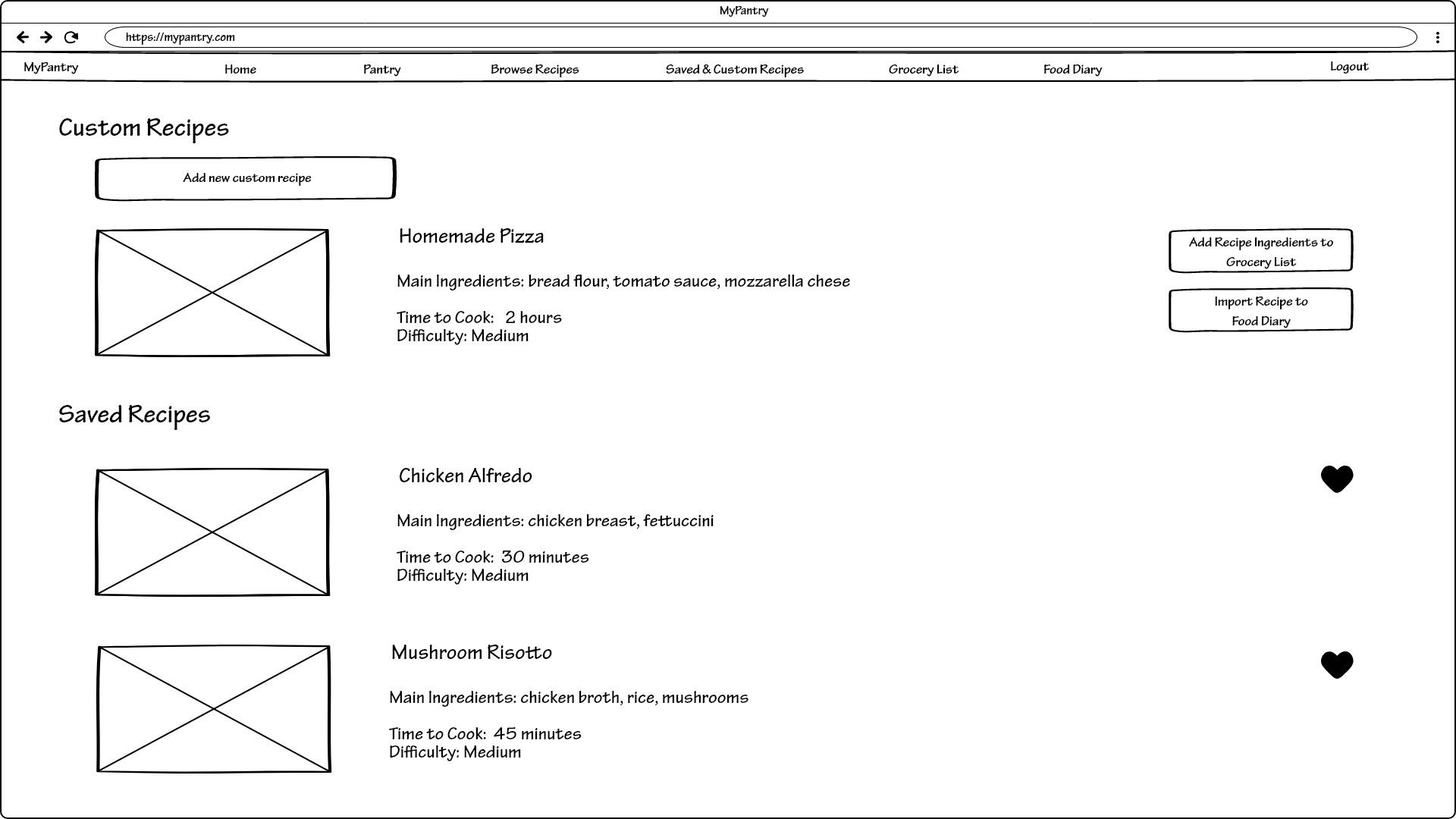
On the “Saved and Custom Recipes” link, users can view all recipes that they had saved from the “Browse Recipes” tab and manage all custom recipes (recipes that they created themselves).
Custom recipes have the option to add the recipe to the “Grocery List” and to import it into “Food Diary” similar to all recipes in the “Browse Recipes” tab, while saved recipes have an icon to un-save the recipe.
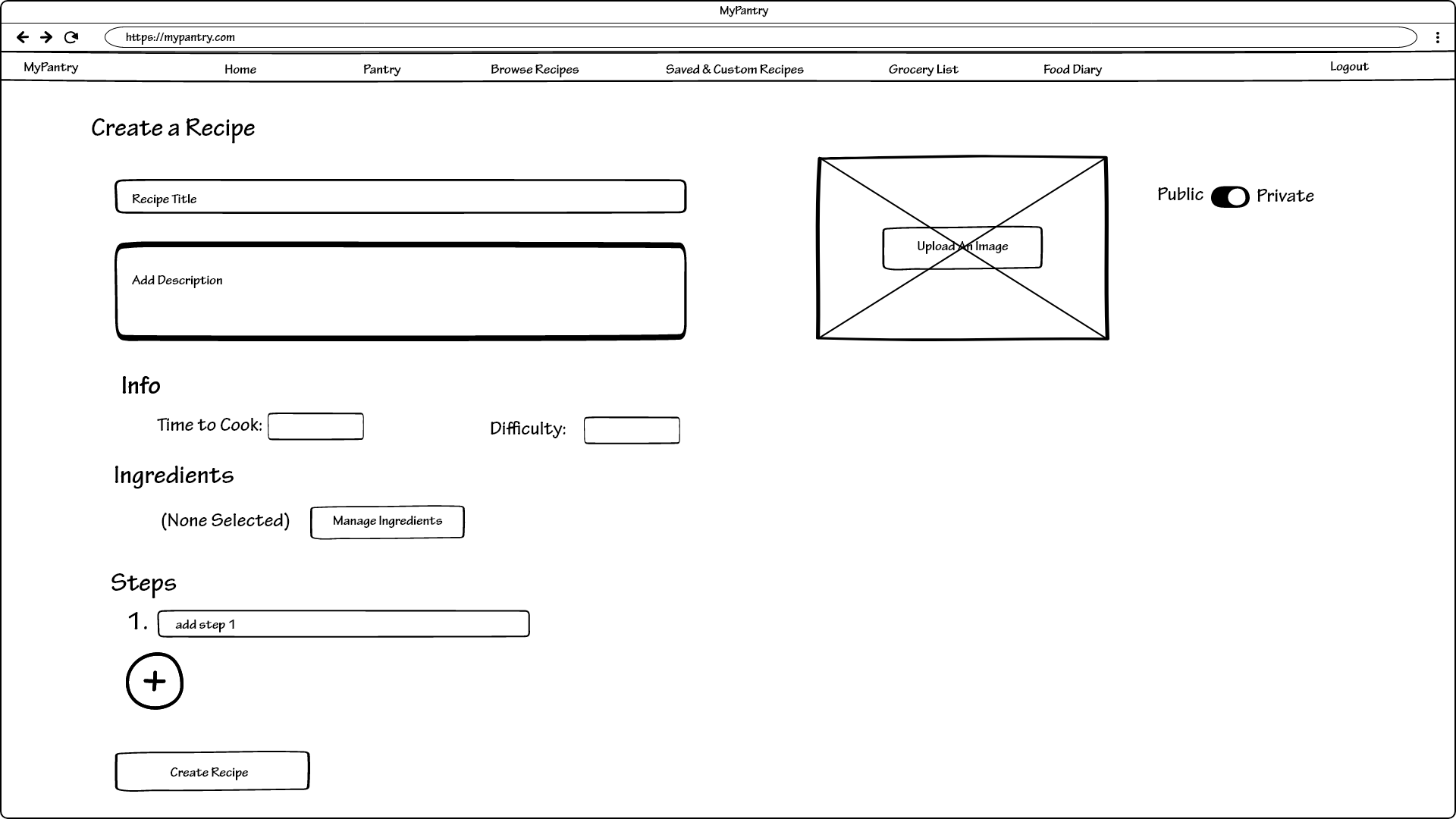
Clicking on “Add new custom recipe” presents the following screen:
Selecting “Manage Ingredients” presents users with a pop-up allowing them to add and remove ingredients into the recipe.
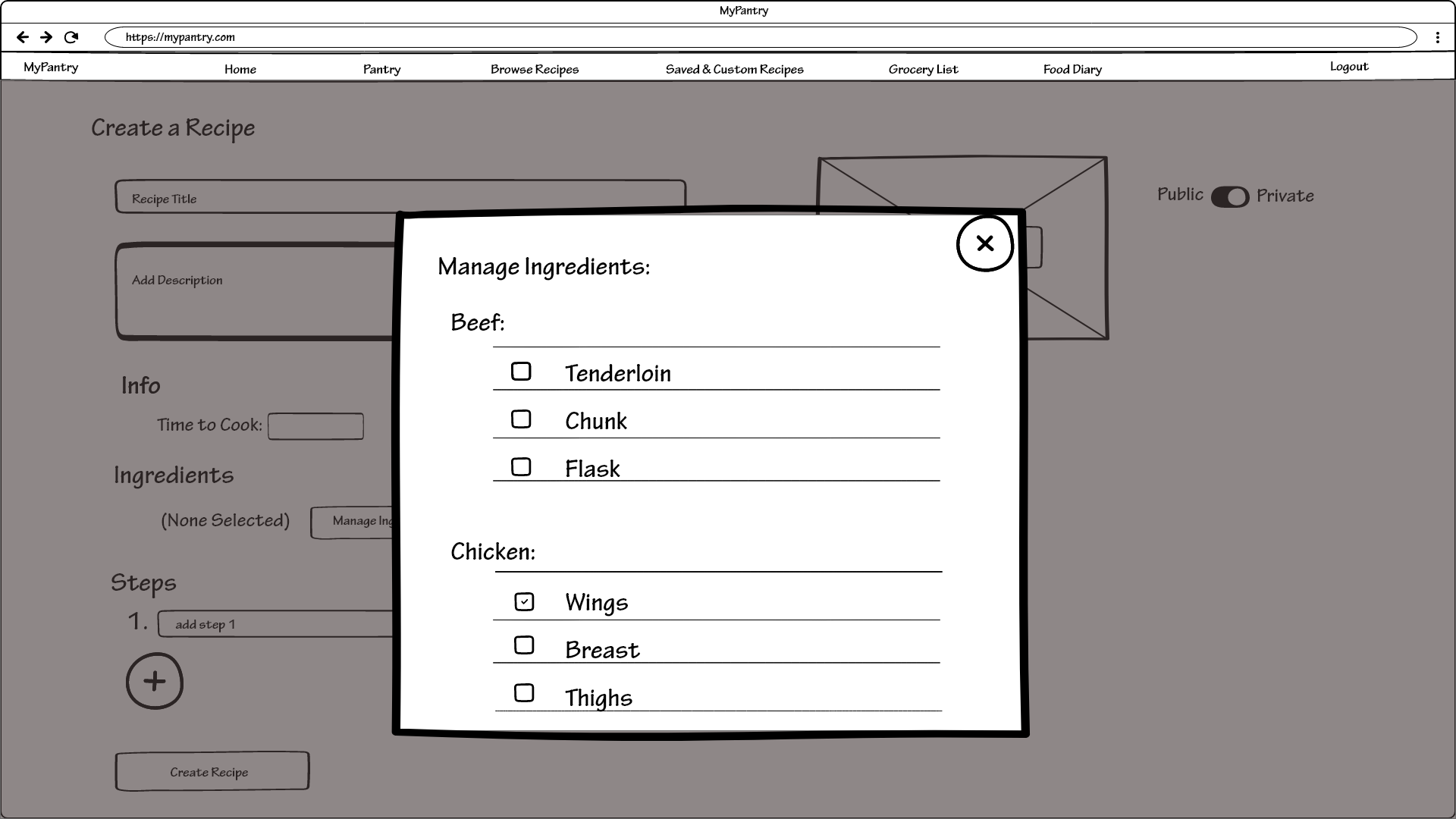
After selecting a few ingredients, the pop-up updates to reflect the selected ingredients:
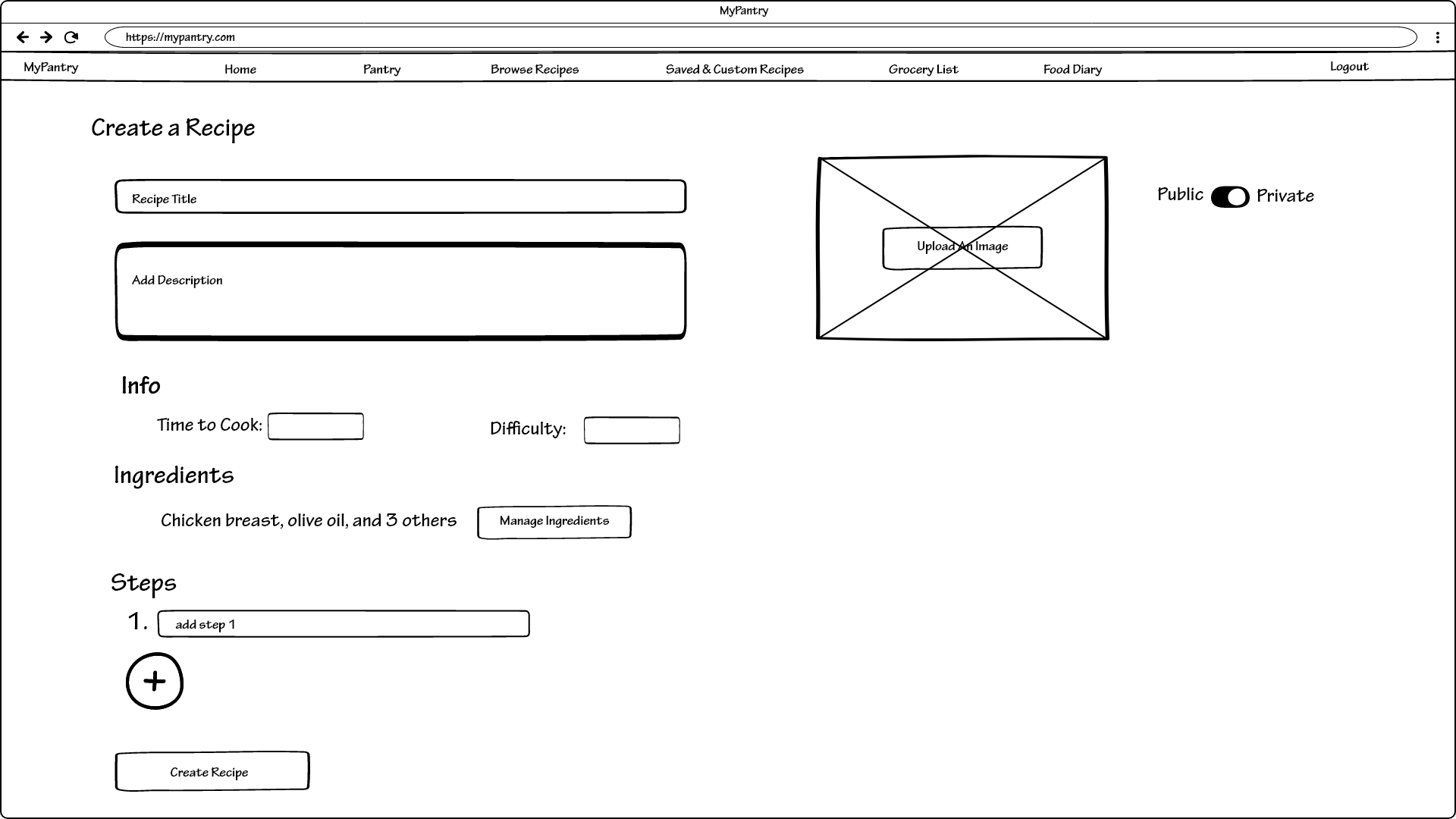
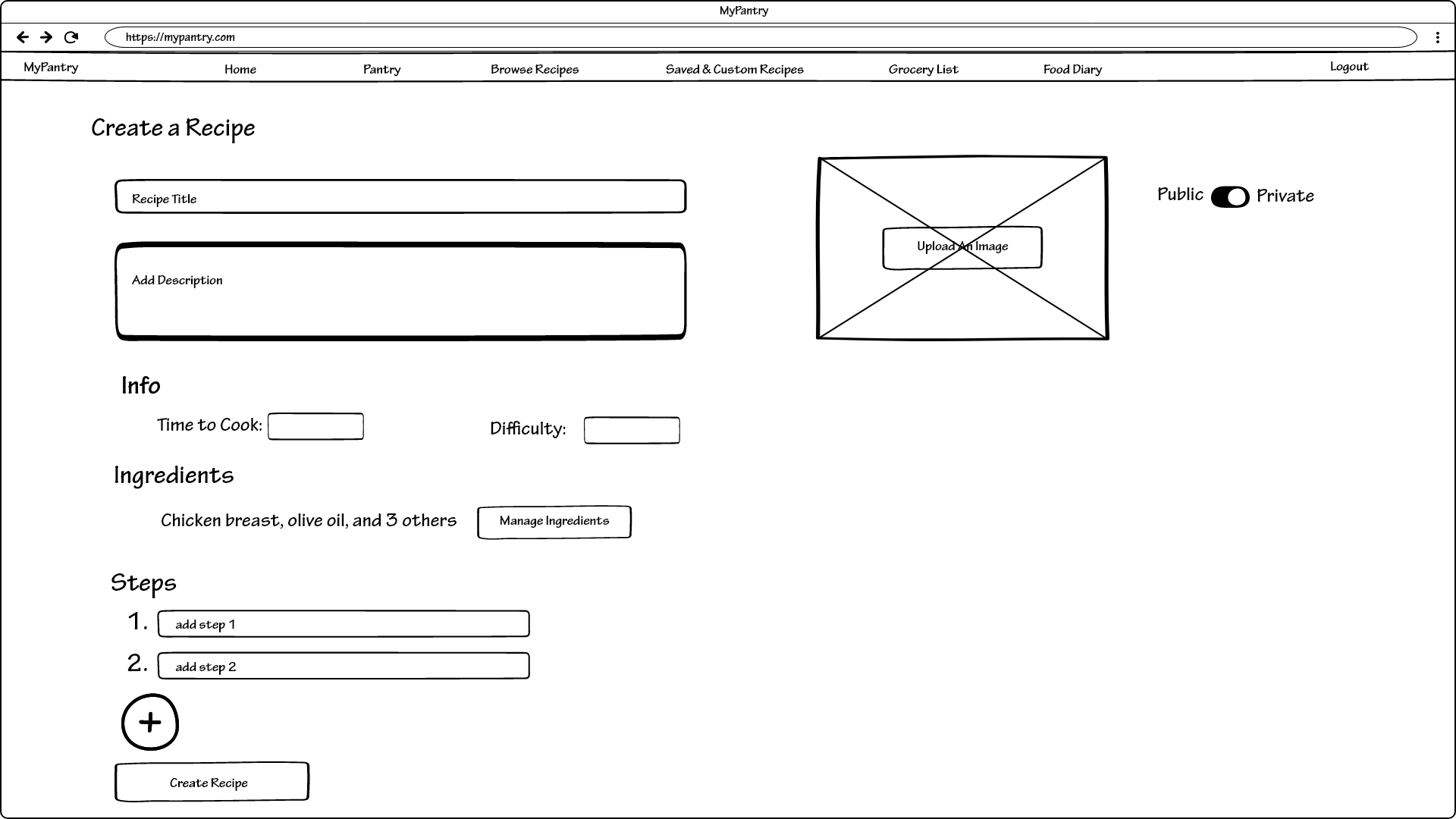
Click on the add button under the current step creates a new step line that the user fills out:
Grocery List
The Grocery List tab is a view for users to quickly identify all ingredients they are missing. It pulls recipes that users imported from the “Browse Recipes” tab and compares all ingredients in those recipes with ingredients users previously marked as having in their pantry:
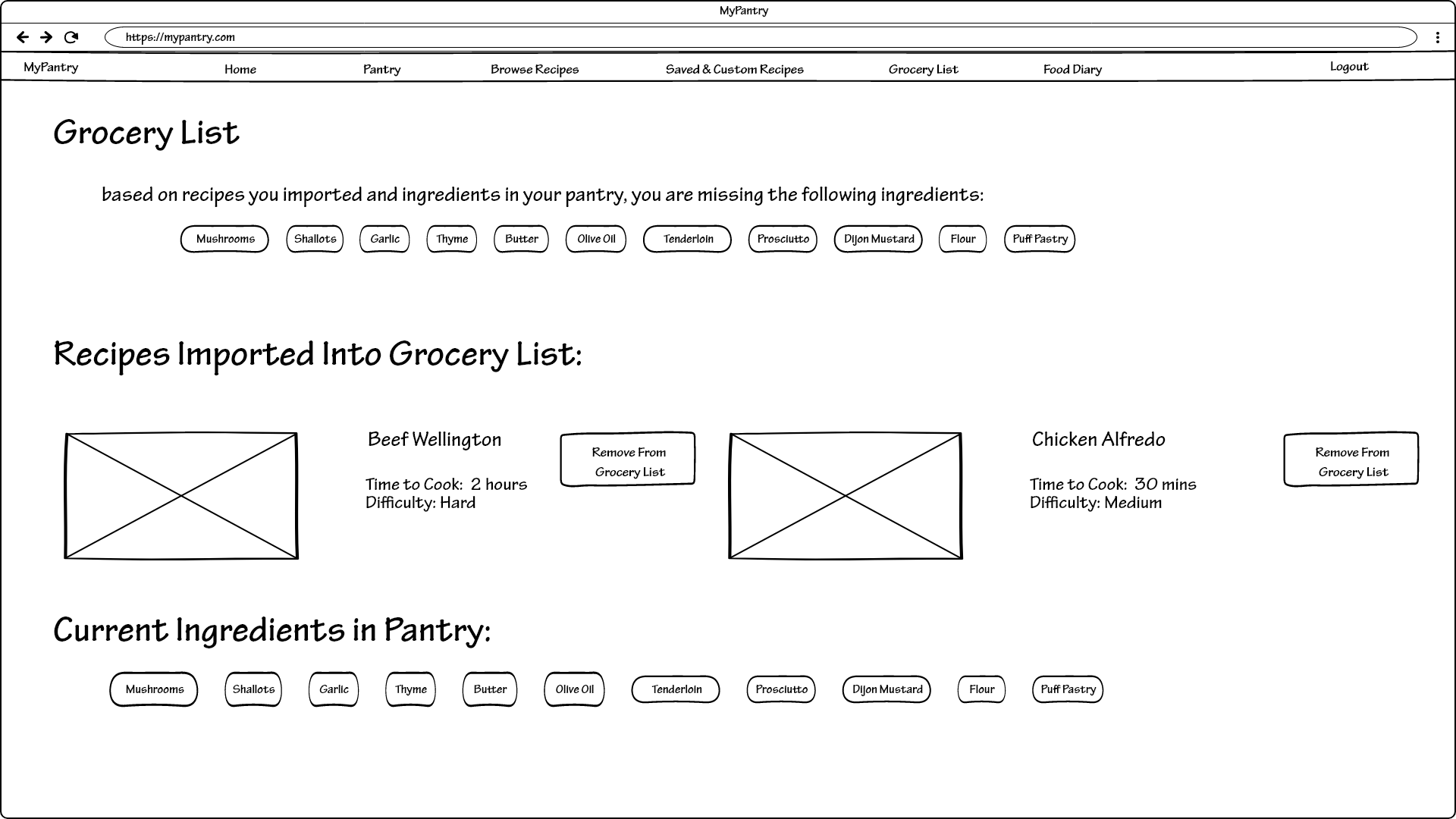
Clicking on “Remove from Grocery List” will remove the recipe from this view as well as update the missing ingredients list accordingly.
Food Diary
Lastly, the food diary tab allows users to track meals that they have had as well as create notes on reactions that they have experienced. All recipes that were imported from the “Browse Recipes” tab are listed at the top along with the option to create a diary entry for that recipe:
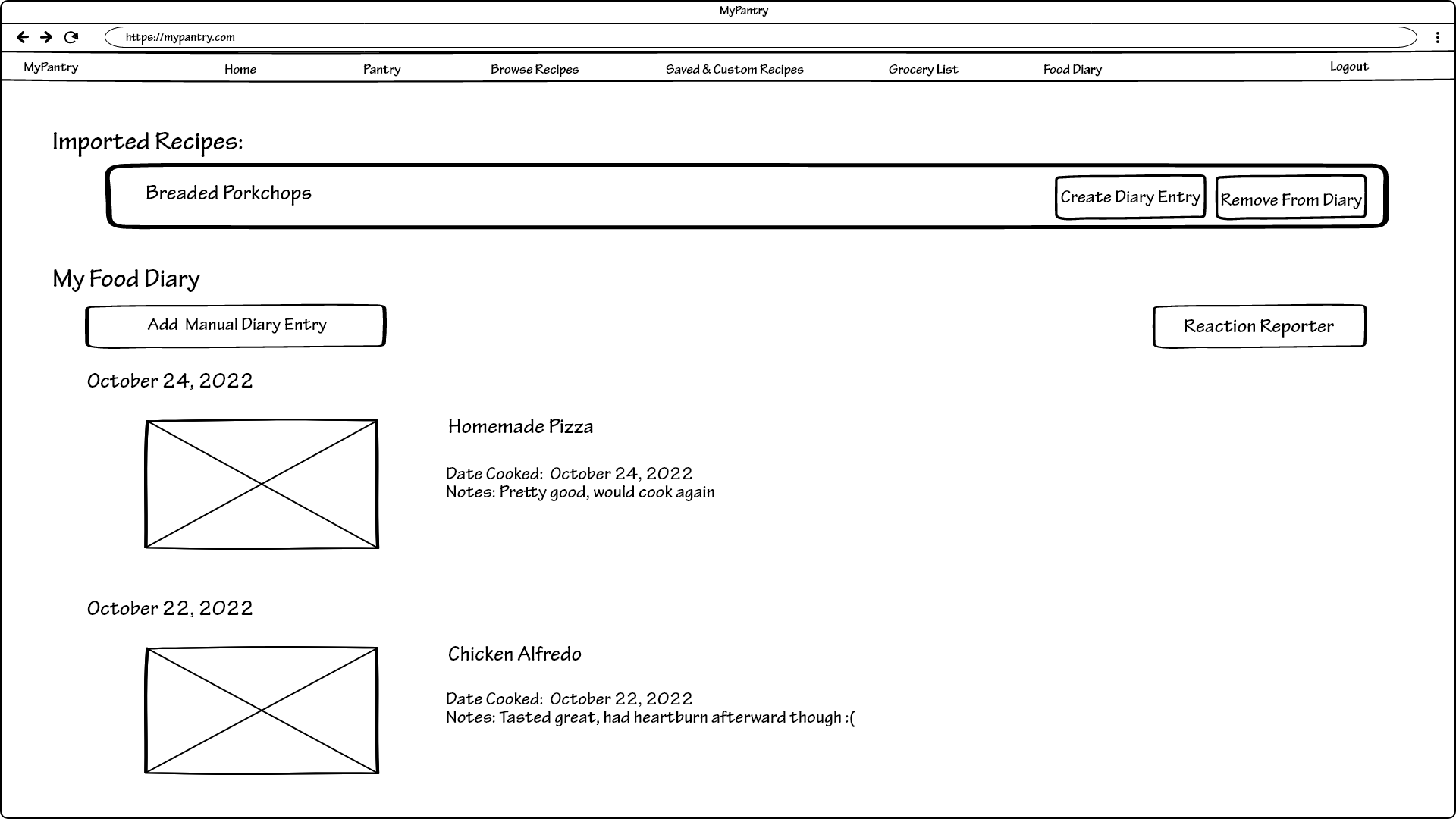
Clicking on “Create Diary Entry” brings up a pop-up prompting users to enter more information:
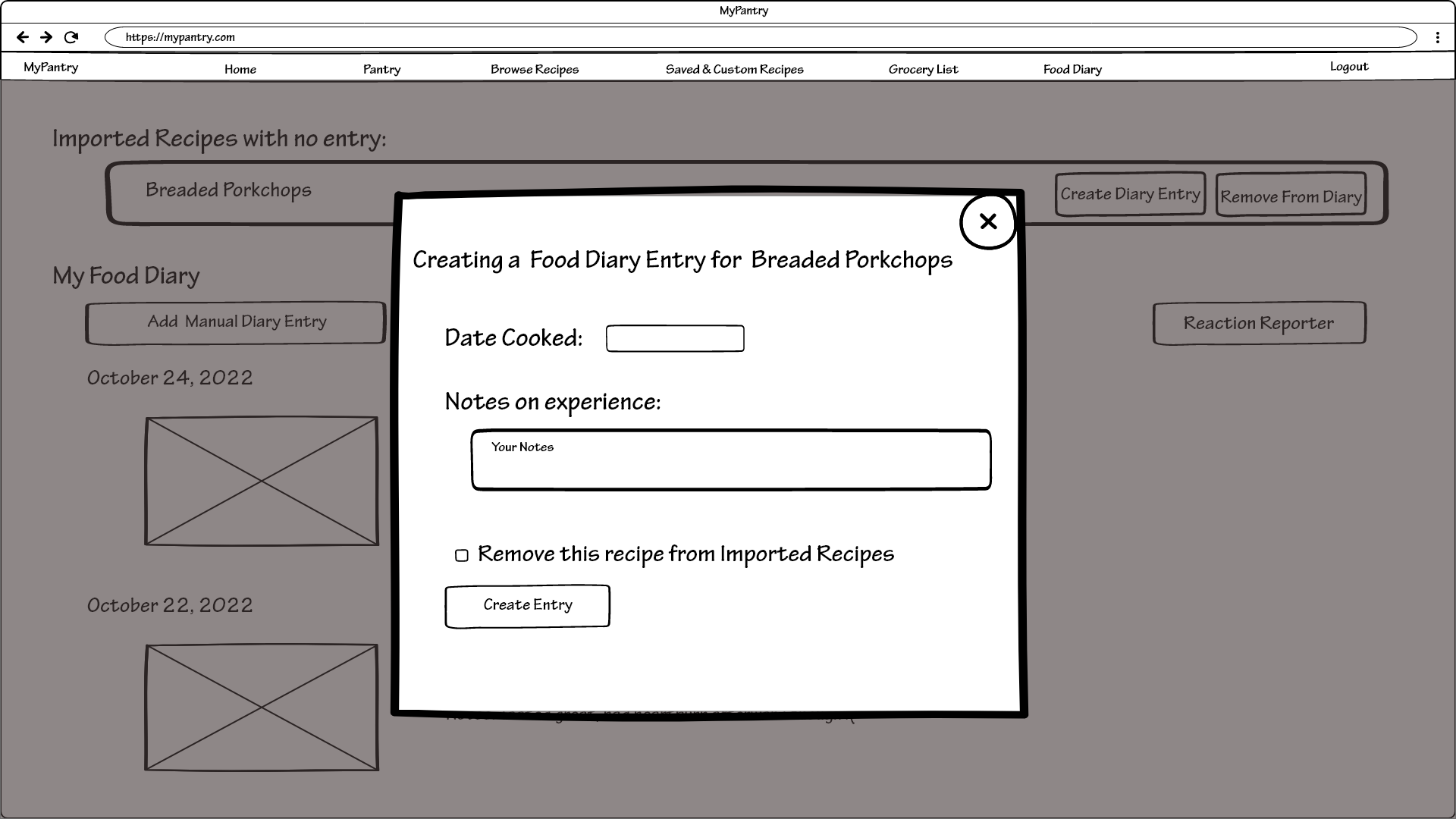
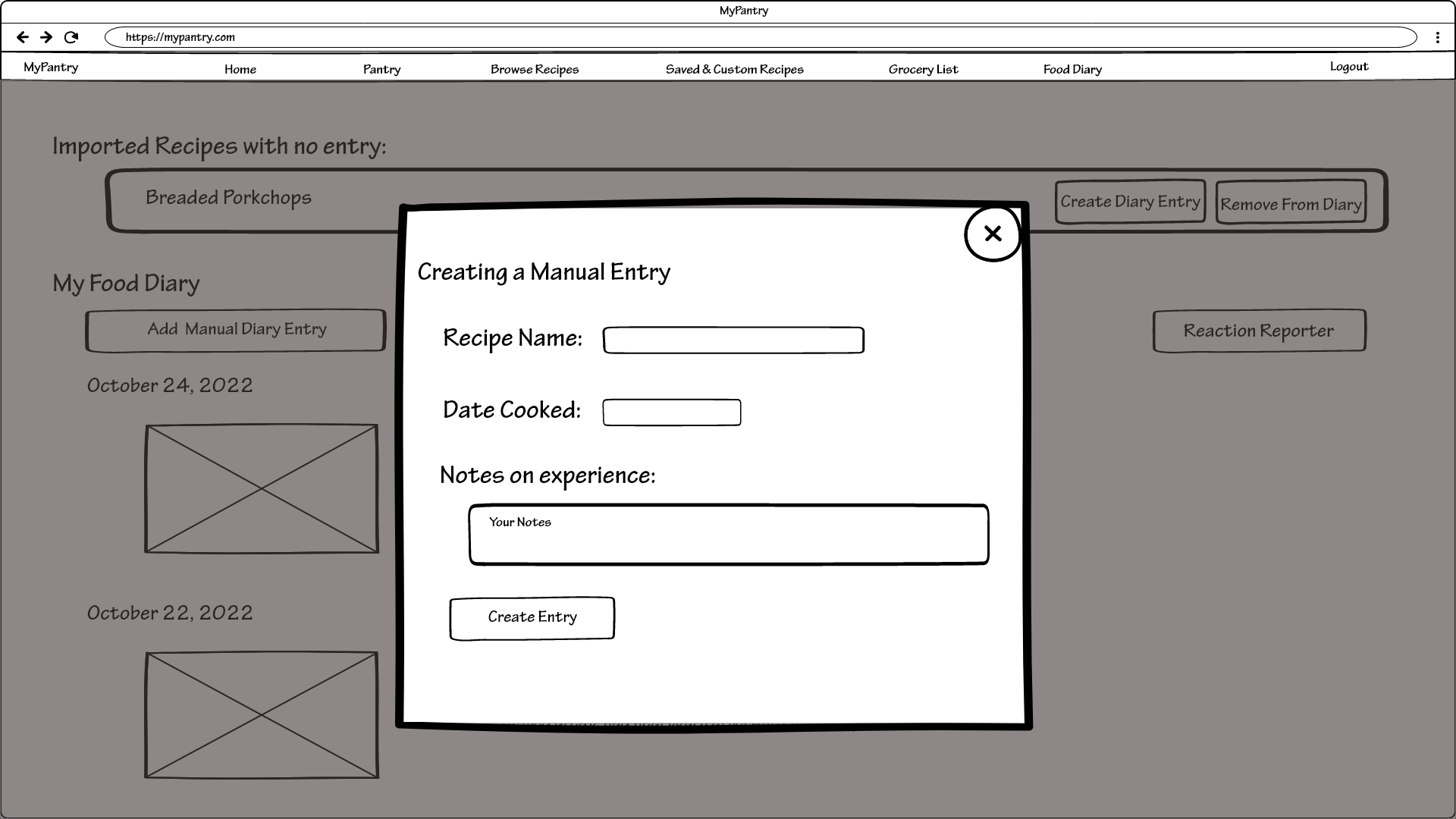
Users can also use the “Add Manual Diary Entry” to add recipes to their diary that are not from the MyPantry service:
Selecting “Reaction Reporter” brings users to the following new screen:
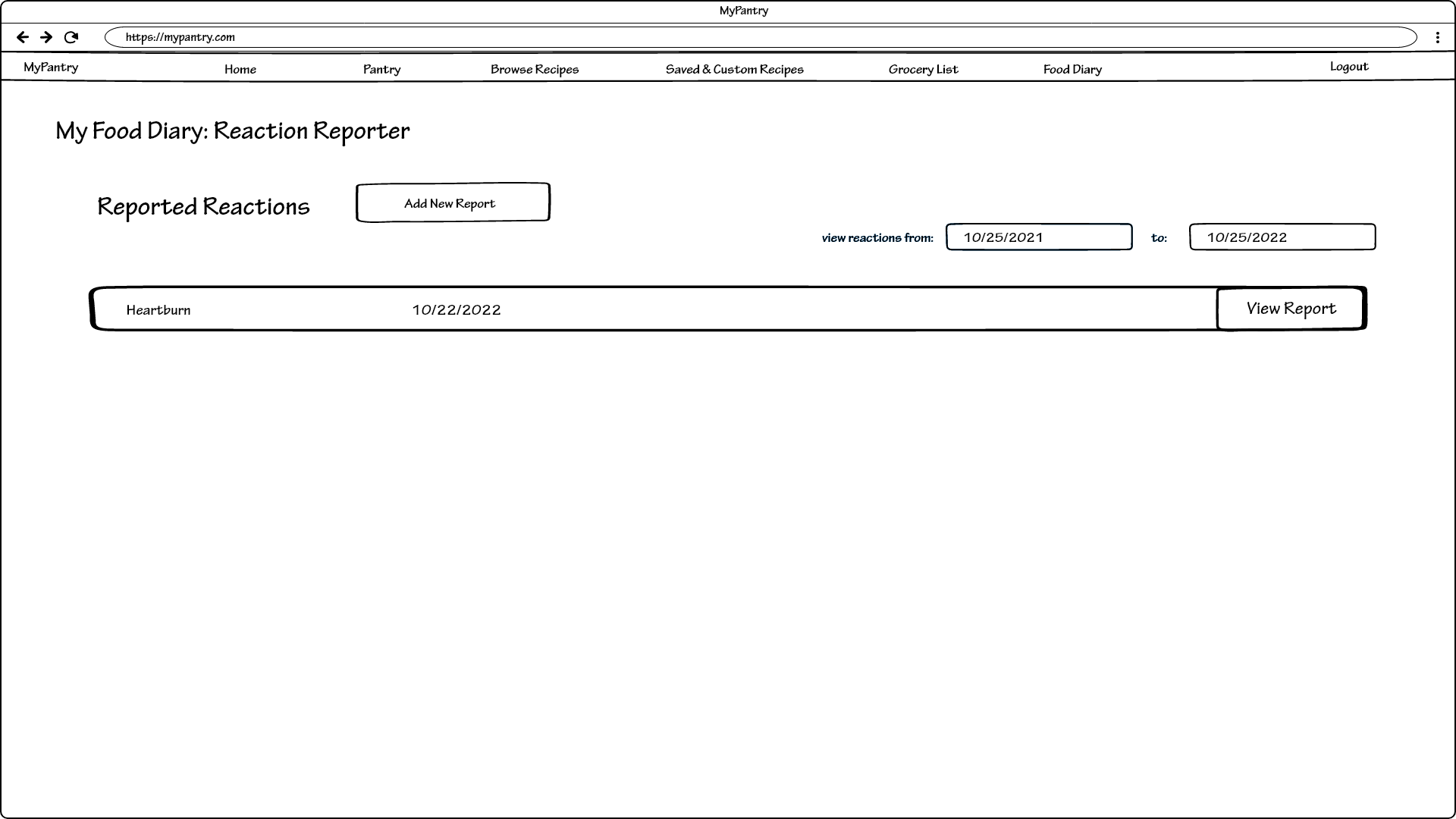
Here users see a listing of all reaction reports they created and can also create new reports. The filter on the far right limits the amount of reaction listing that the user can see based on a time range.
Selecting “Add new report” presents the following pop-up, prompting users to add more information:
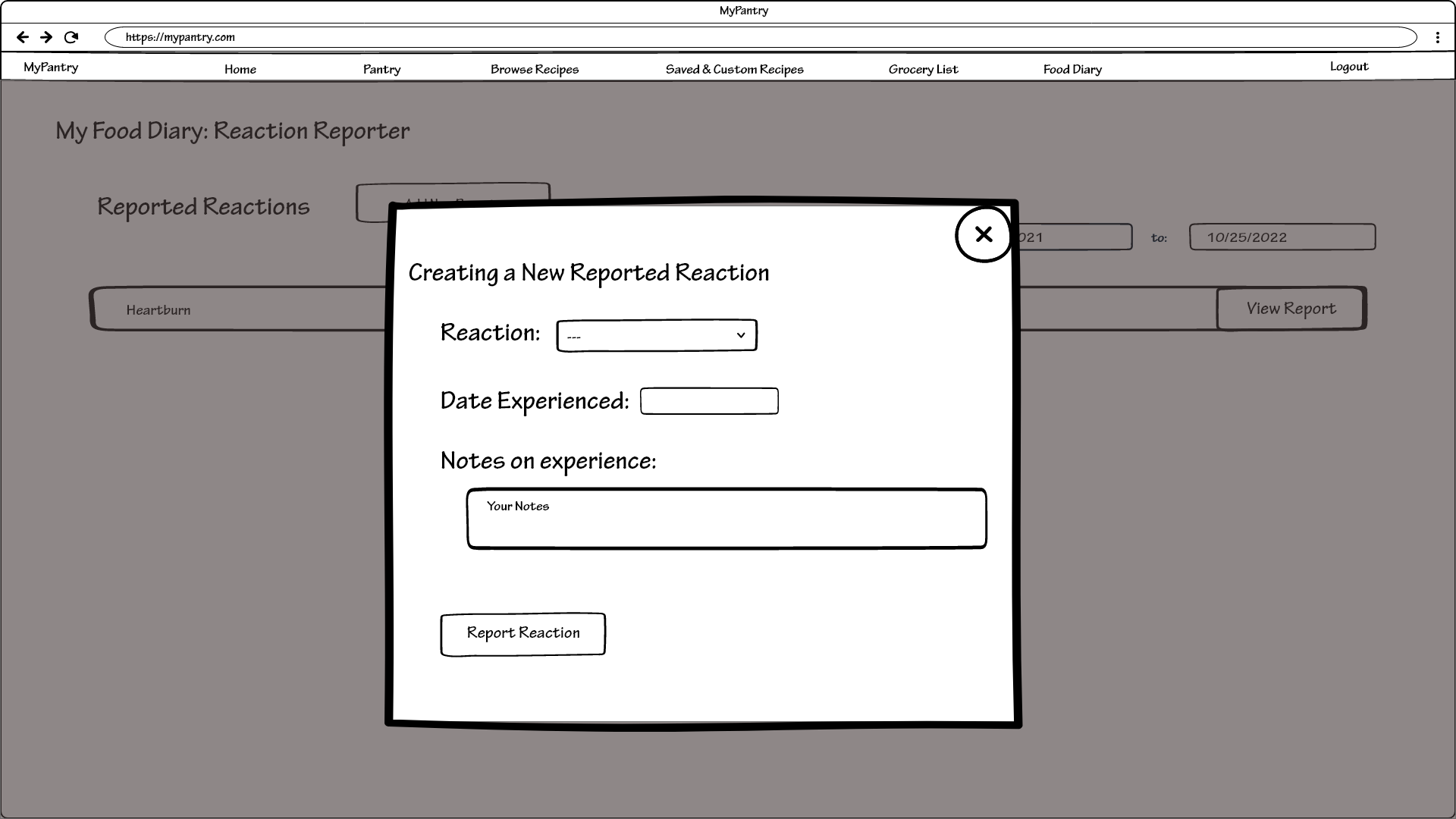
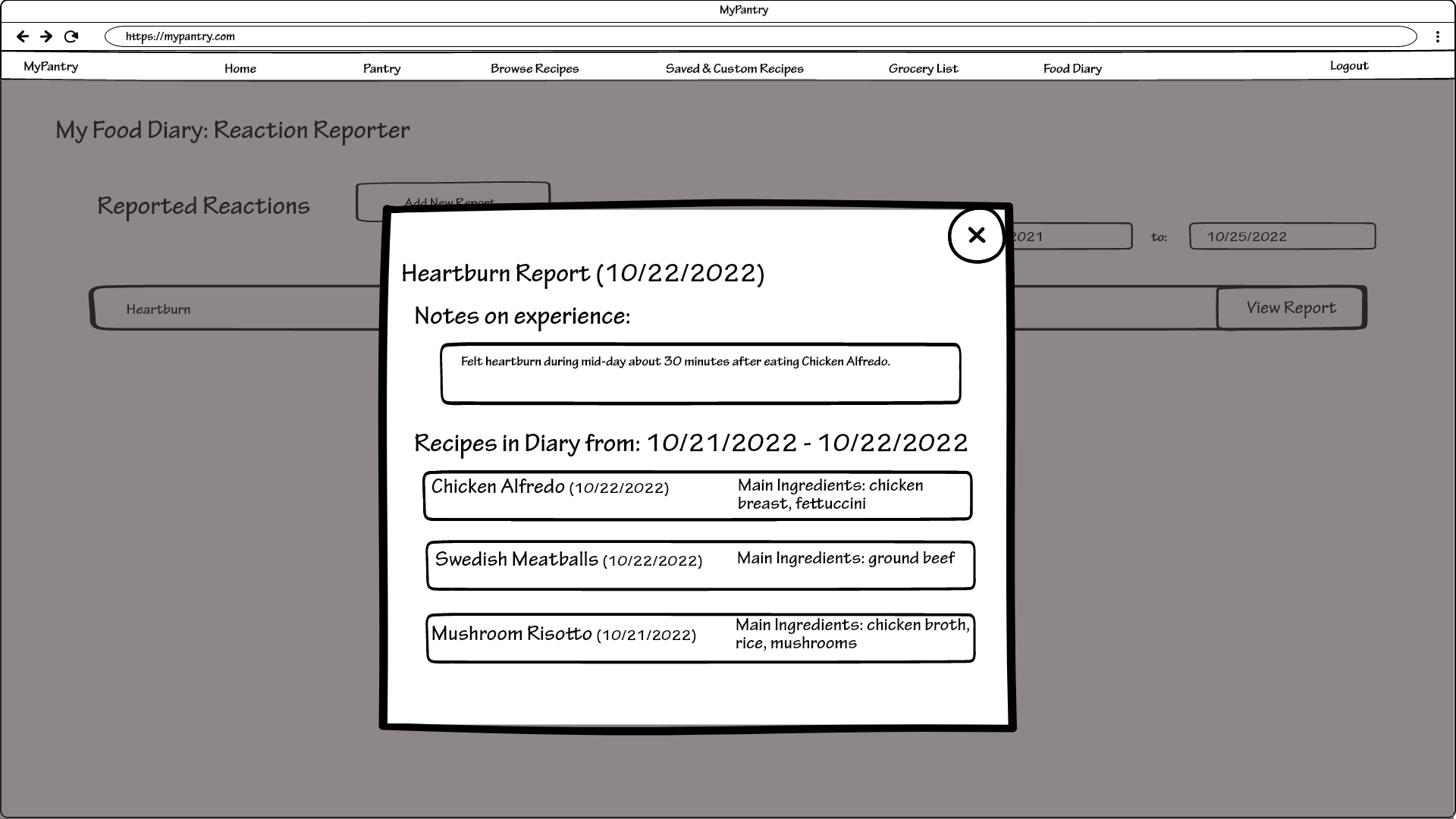
And finally, selecting “View Report” brings up a pop-up showing all notes that the user had previously entered as well as a listing of recipes in their diary around the time of the reported reaction: